
I was assigned the task of implementing the NDES service into an existing two‑tier PKI infrastructure so that certificates could be issued to devices using the SCEP protocol. After analyzing the documentation and summarizing all recommendations, I arrived at the following prerequisites and configuration steps. The sources that helped me understand the topic and successfully deploy NDES were primarily:
Network Device Enrollment Service (NDES) Basics
NDES Security Best Practices
Configure Network Device Enrollment Service to use a domain user account
Let us summarize the installation prerequisites in a model scenario
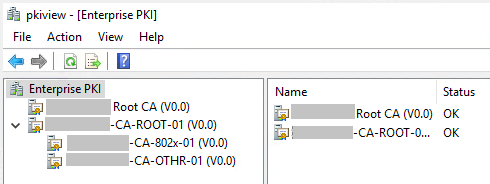
A two‑tier PKI infrastructure exists in Active Directory. This means the Root CA issues certificates only to Issuing CAs, which then publish certificates to clients through CA Templates.
The PKI infrastructure must be healthy.
The account under which NDES will be installed must have the following permissions:
- Membership in Enterprise Admins
- Member of Local Administrators
- Administrative permissions to manage the CA infrastructure
NDES must not be installed on an existing CA for security reasons.
NDES must not be installed together with OCSP.
NDES must be installed on a dedicated standalone server, because it changes IIS configuration in a way that would conflict with any other web services running on IIS.
The NDES service runs under a domain service account that is a member of the local IIS_IUSRS group. In our case this will be SYSNDES.
Two SPN records must be created in AD.
The service account SYSNDES must have Read + Enroll permissions on the following CA Templates:
- CEP Encryption
- Exchange Enrollment Agent (Offline)
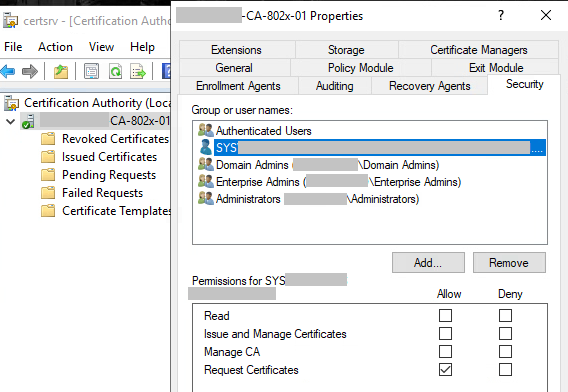
The service account SYSNDES must also have Request Certificates permission on the Issuing CA.
Before running the NDES Setup Wizard
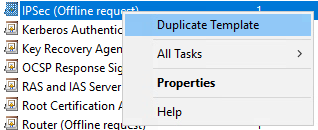
It is necessary to duplicate the existing “IPSec (Offline request)” CA Template and rename the duplicate (e.g. “NDES template”). In its Properties you must configure:
Subject Name
- “Supply in the request”
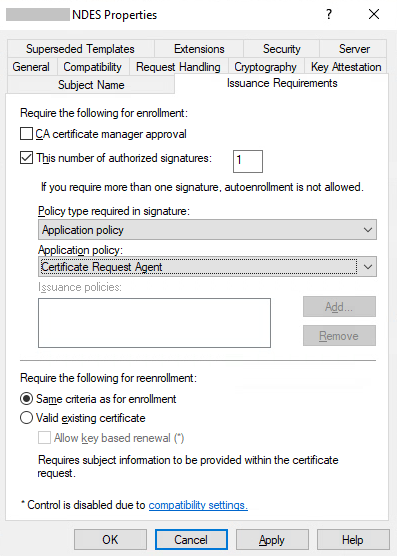
Issuance Requirements
- “This number of authorized signatures = 1”
- Policy:
- Application Policy
- Certificate Request Agent
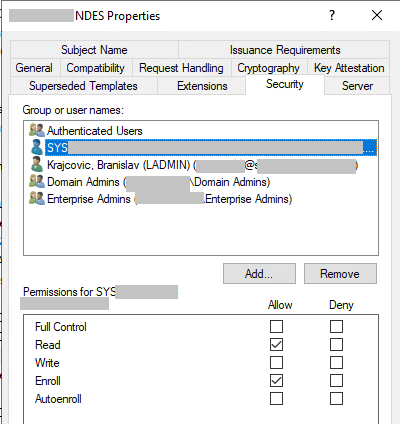
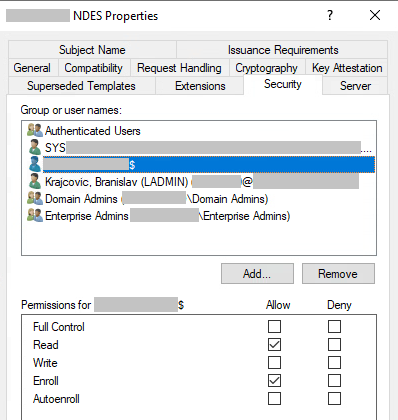
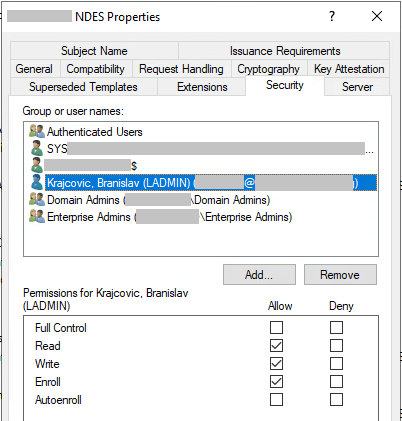
Security
- Enroll:
- NDES service account SYSNDES
- Device Admin / MDM account
- Permission to Enroll certificate on Issuing CA for service account SYSNDES
Creating a new CA Template by duplicating the IPsec (offline request) template
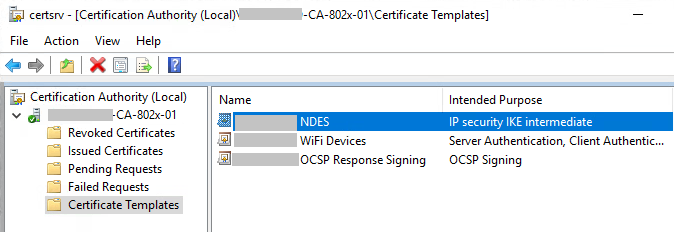
The new name will be “Template NDES”.
Next, publish the template
Its parameters are described in the article:
Configure Device Template for Network Device Enrollment Service (NDES)
From https://www.gradenegger.eu/en/configure-device-template-for-network-device-enrollment-service-ndes/
Issuance Requirements of CA Template “Template NDES”
Read and Enroll permissions na CA Template “Template NDES”
Read and Enroll Permissions for Computer account NDES-server$
My administrator account
CA Template “CEP Encryption”
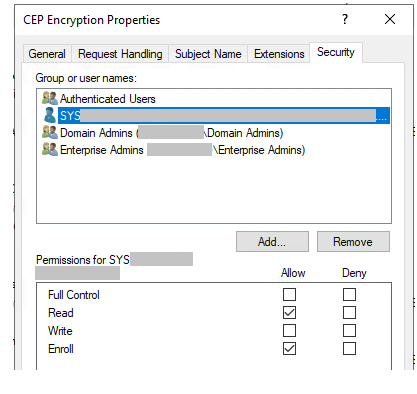
And
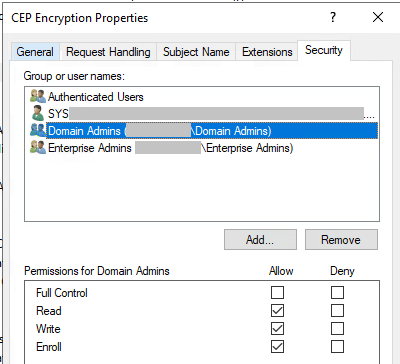
CA Template “Exchange Enrollment Agent (Offline request)” permission
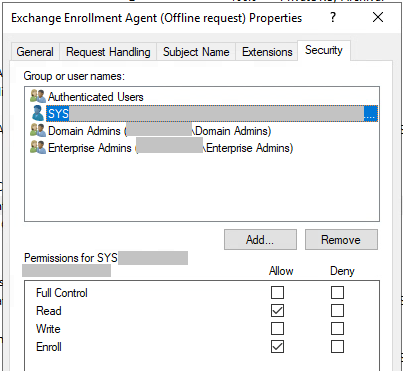
And
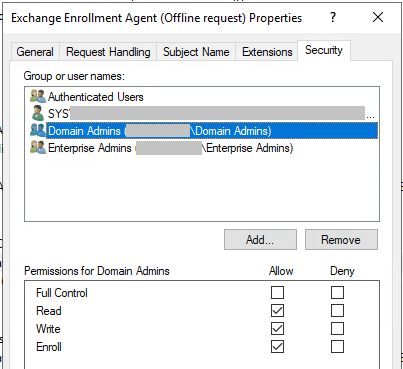
Installation of IIS and .NET components
Before launching the Setup Wizard, IIS must be configured with all required components and a valid SSL certificate.
If IIS is missing .NET components, the NDES Setup Wizard may fail.
Cmdlet to deploy:
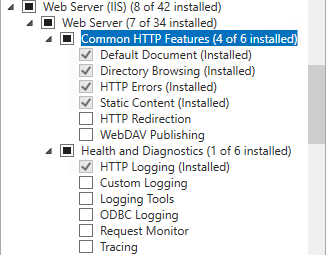
Add-WindowsFeature Web-Server -IncludeManagementToolsAdd Missing components:
HTTP Redirection, Logging Tools, Request Monitor, Tracing
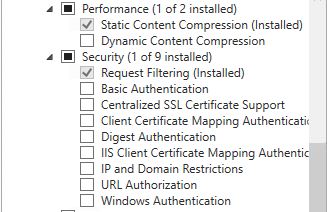
Windows Authentication
ISAPI Extension, IIS6 Metabase Compatibility
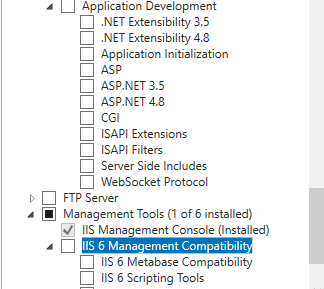
Add .NET + Application Development components accordingly.
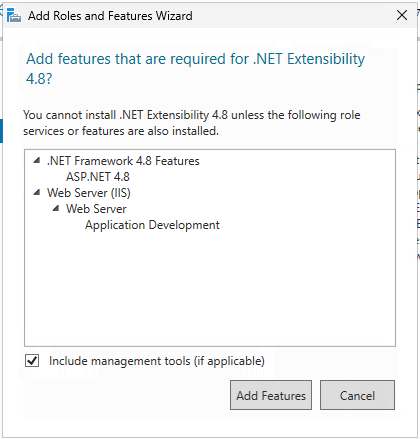
Add ISAPI filters and ISAPI Extensions
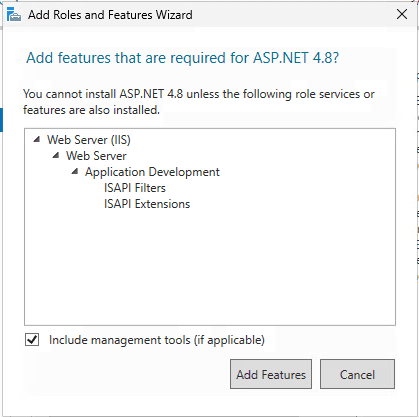
Result
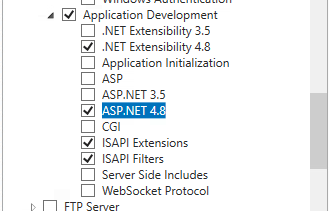
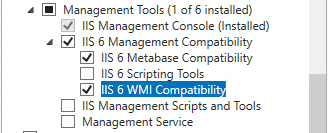
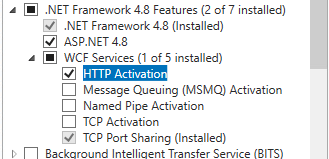
If IIS and .NET components are not properly installed before running the NDES Setup Wizard, NDES will fail.
SSL Certificate
Create the SSL certificate with
CN=NDES-serverand SAN
DNS=NDES-server
DNS=NDES-server.domain.fqdn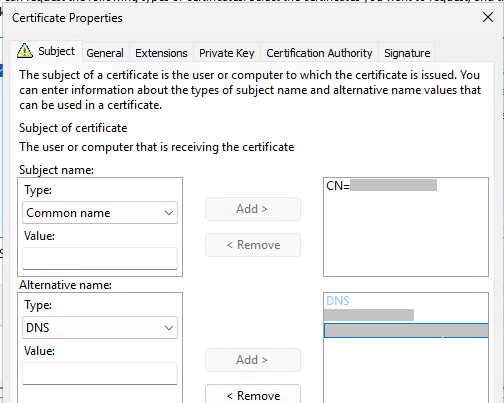
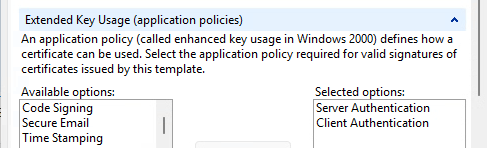
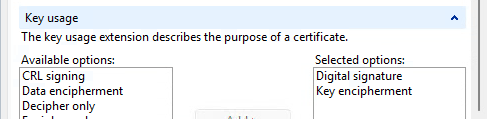
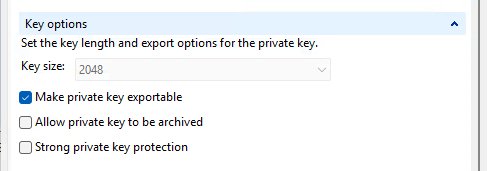
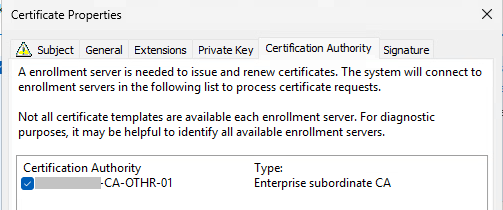
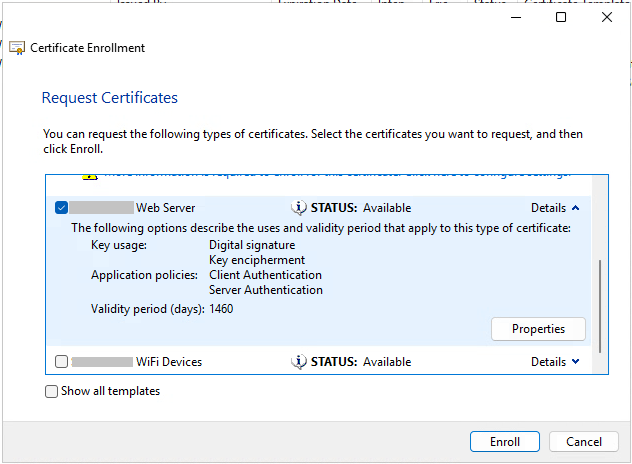
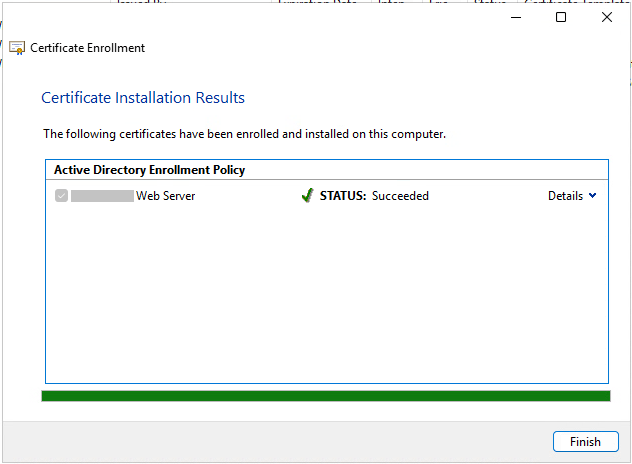
Then bind it to the site in IIS by Adding https
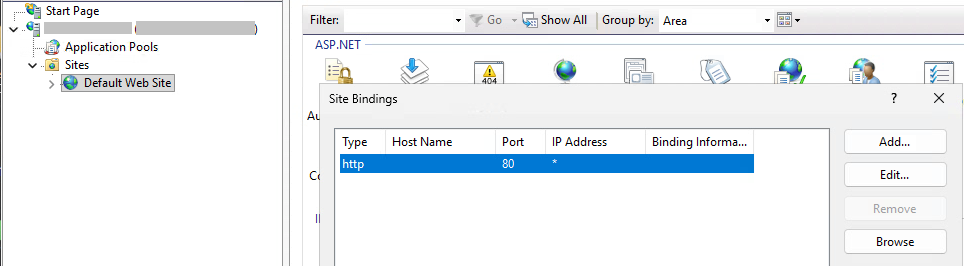
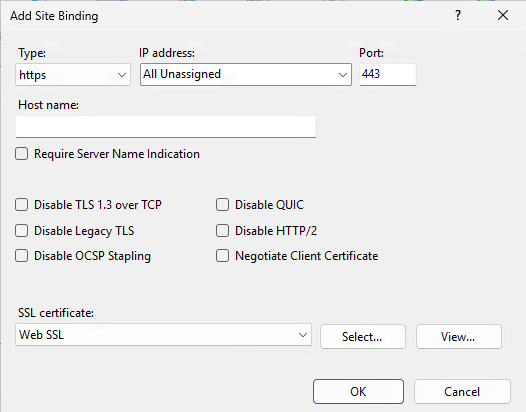
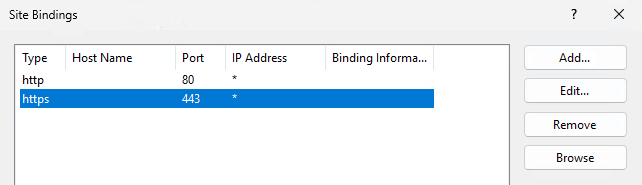
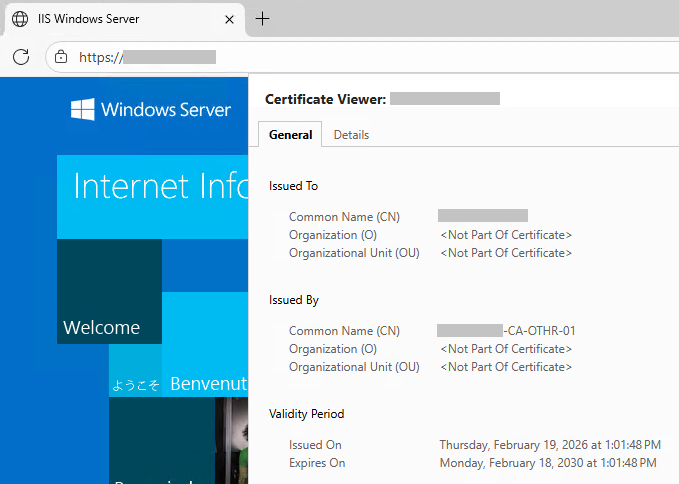
Install NDES role
Add-WindowsFeature ADCS-Device-Enrollment -IncludeManagementTools
Reboot.
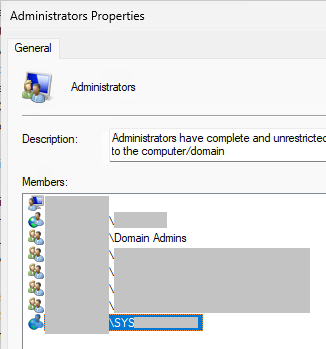
Add the service account SYSNDES to the local IIS_IUSRS group.
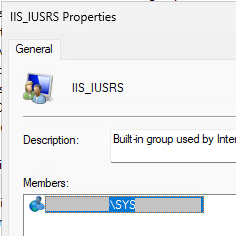
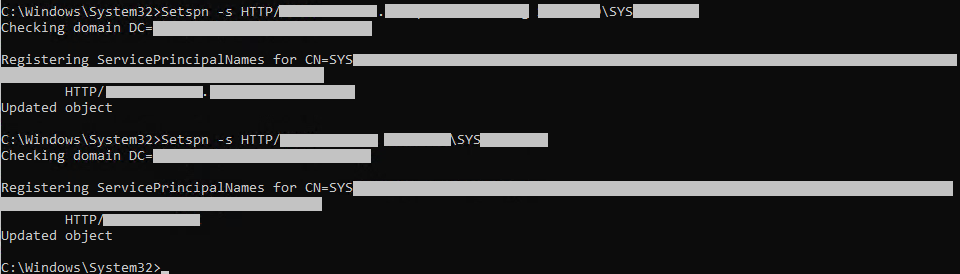
Create SPN records
Setspn -s HTTP/NDES-SERVER.domain.fqdn DOMAIN\SYSNDES
Setspn -s HTTP/NDES-SERVER DOMAIN\SYSNDES
Verify SPN creation.
Setspn -Q HTTP/NDES-SERVER
Setspn -L SYSNDES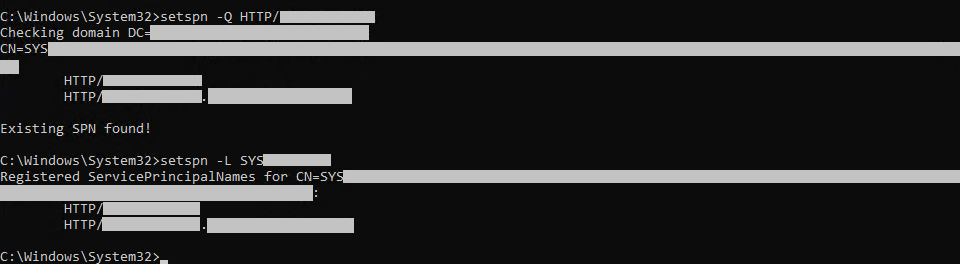
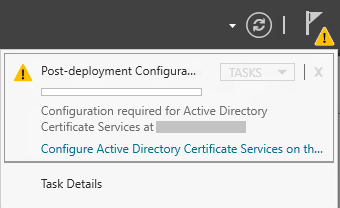
Running the NDES Setup Wizard
NDES is installed by adding the Certificate Services role, but only the NDES sub‑role.
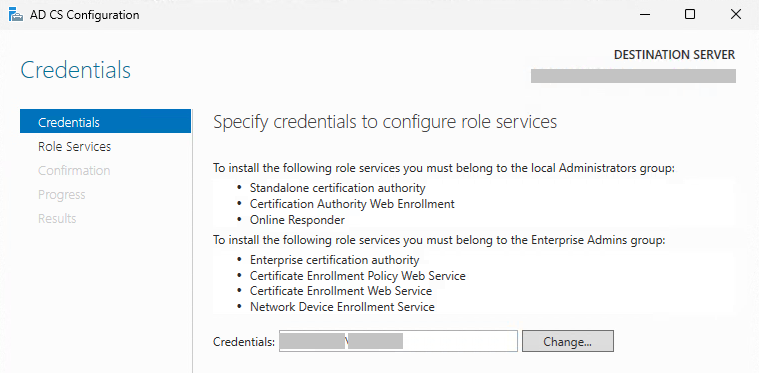
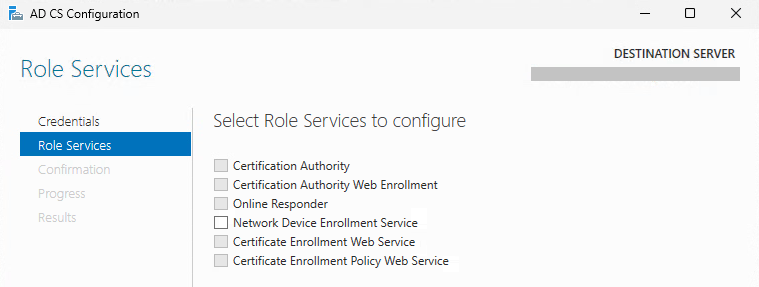
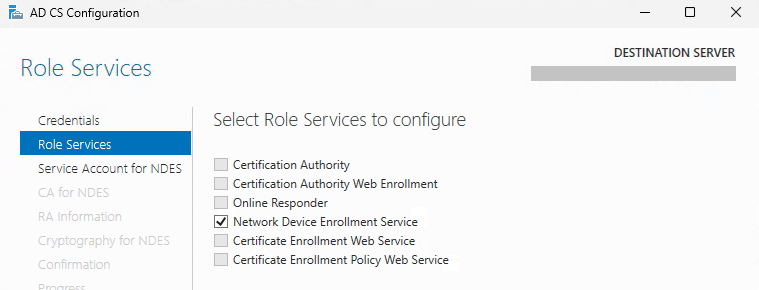
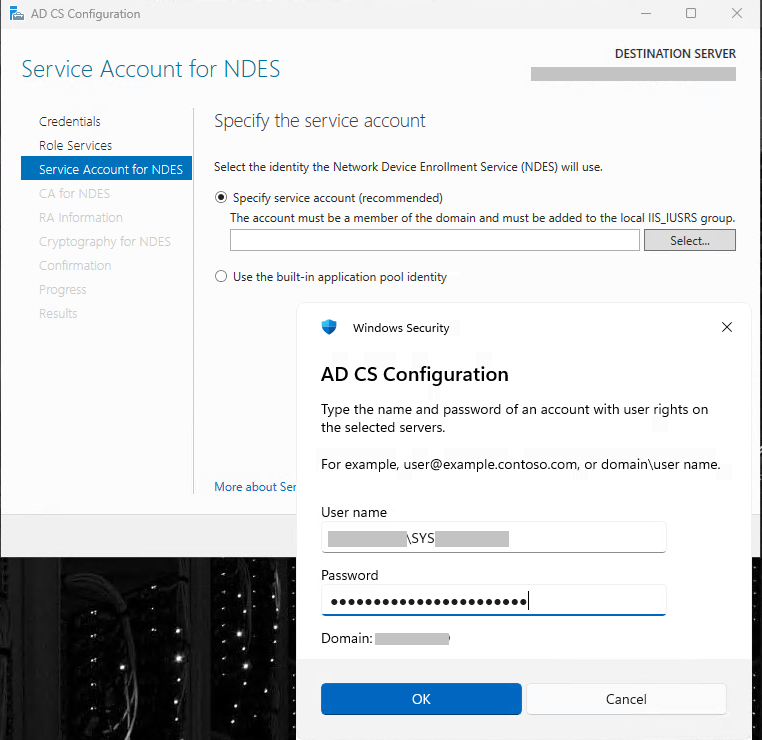
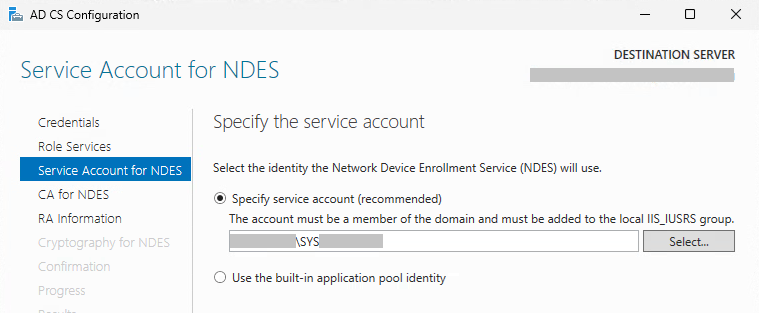
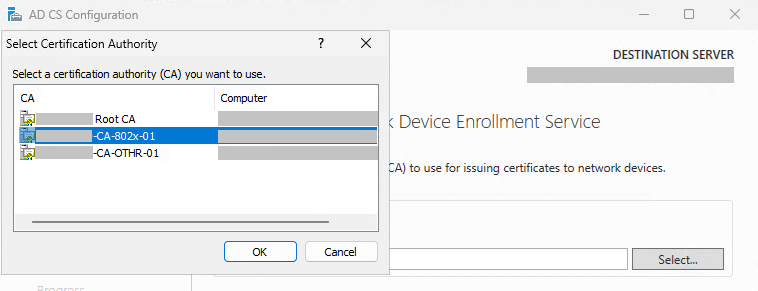
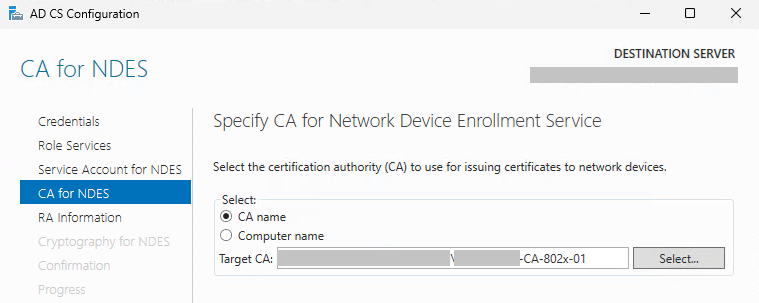
Do not include a comma in the company name, because RFC1617 does not allow a comma character.
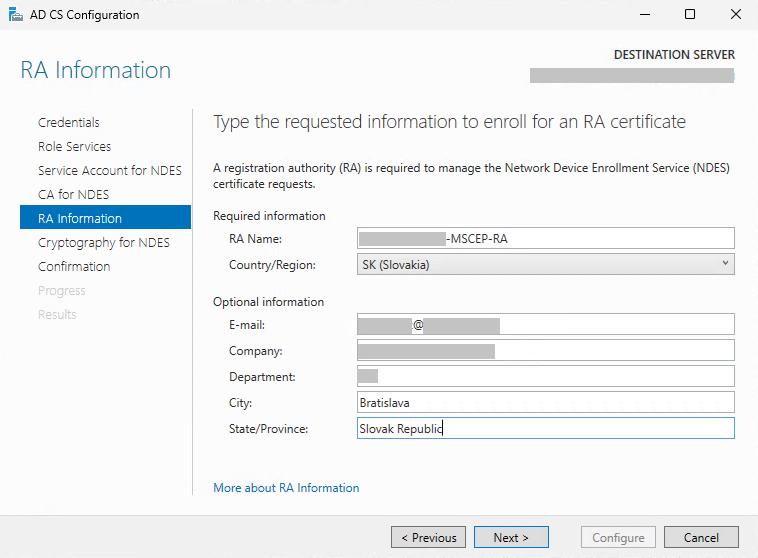
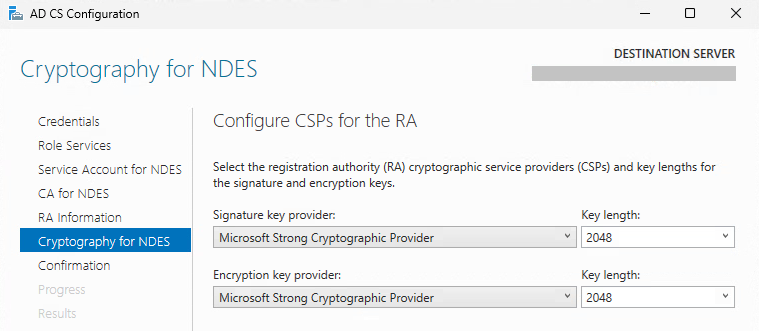
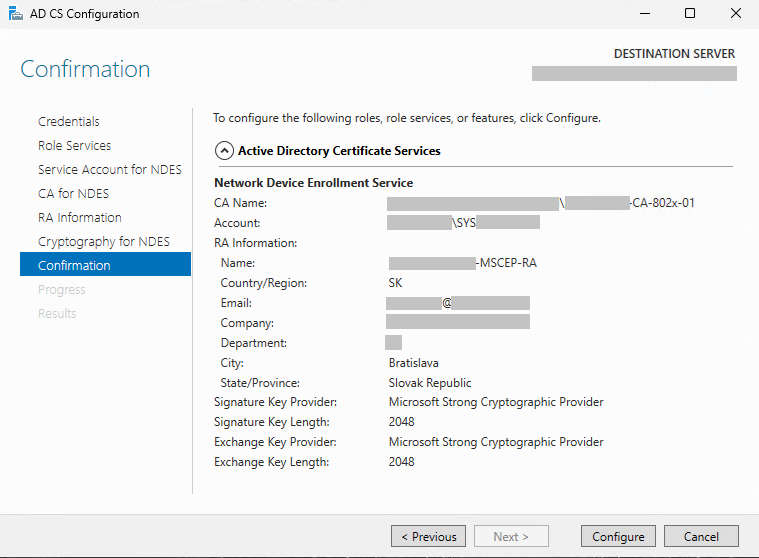
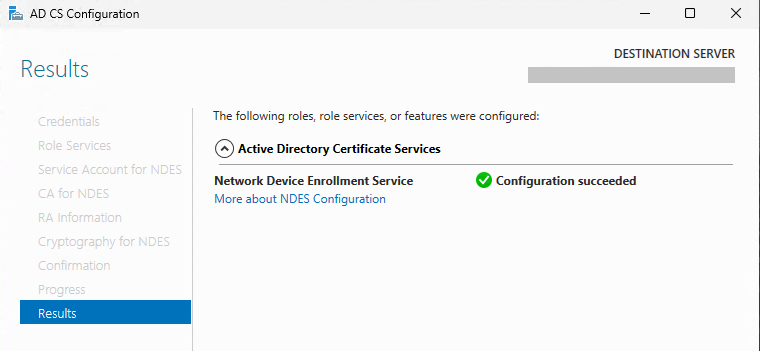
If the Setup Wizard fails with:
“The String contains an invalid X500 name attribute key, oid, value or delimiter 0x80092023 (CRYPT_E_INVALID_X500_STRING)”,
the cause is an invalid character in one of the certificate fields.
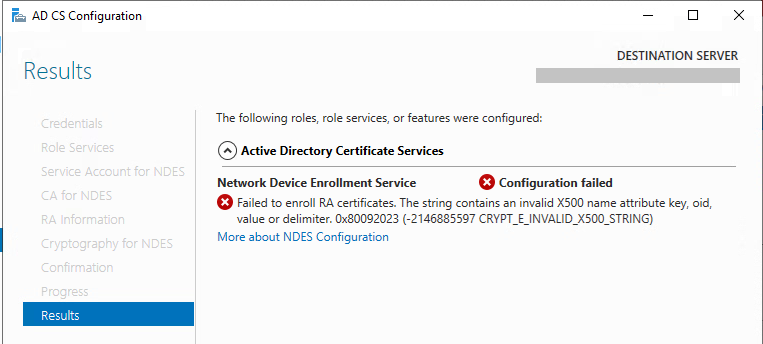
In my case, the issue was that the Company field contained a comma, which is forbidden by RFC1617.
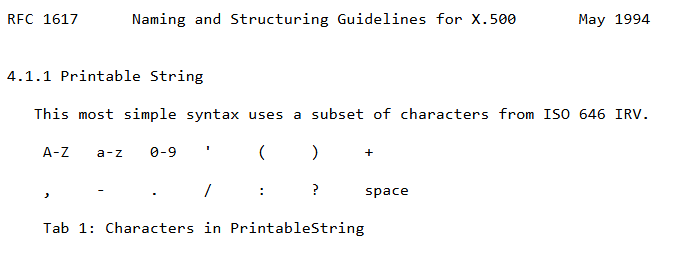
RFC1617:
https://www.ietf.org/rfc/rfc1617.txt?number=1617
Post‑installation checks
In IIS:
The SCEP Application Pool must run under the NDES service account SYSNDES.
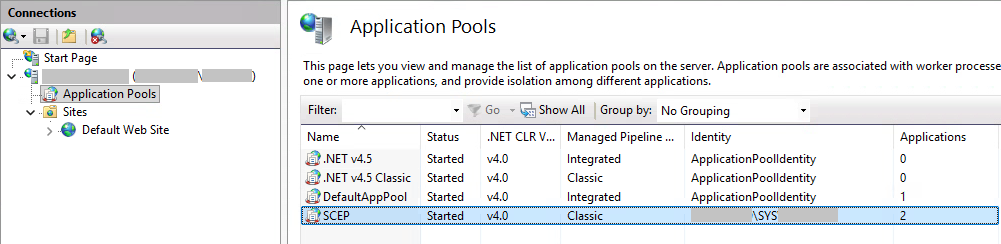
Both Applications must run inside the SCEP Application Pool.
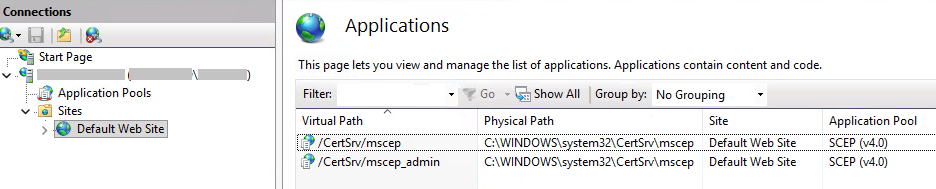
Note: The Setup Wizard creates /CertSrv/mscep and /CertSrv/mscep_admin as Applications, not as Web Sites or Virtual Directories. Therefore they are not visible as individual web sites in IIS—only under Default Web Site → Applications.
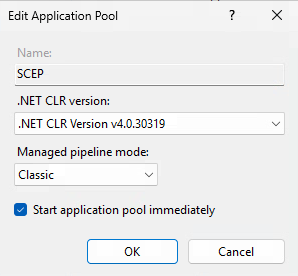
Application Pool Settings
Managed Pipeline Mode: Classic
Windows Authentication: Enabled
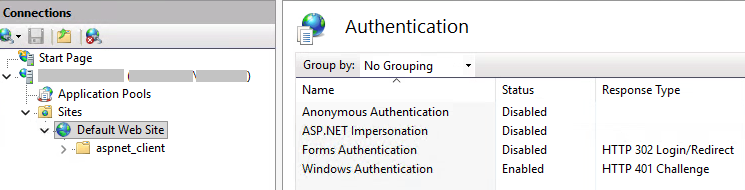
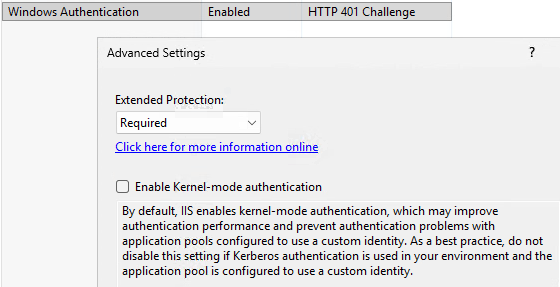
Kernel‑mode Authentication: Disabled
If the NDES server uses a domain account or gMSA, kernel‑mode authentication must be disabled, otherwise service tickets cannot be decrypted.
From https://www.gradenegger.eu/en/unable-to-authenticate-to-the-ndes-administration-site/
Anonymous / Forms / ASP.NET Impersonation: Disabled
Handler Mappings
In IIS → Default Web Site → Applications → mscep_admin
modify the Handler Mapping order:
Move StaticFile above ExtensionUrlHandler…

To

Restart IIS:
iisreset.exeBrowser Trust Zone
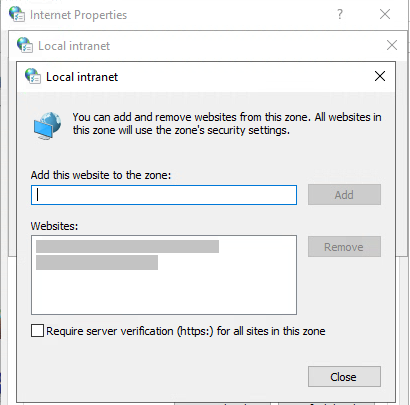
On the NDES server, server from the URL:
https://ndes-server/certsrv/mscep_admin
must be added to Local Intranet or Trusted Sites, otherwise HTTP 401 or repeated credential prompts may occur.
Check proxy settings / PAC configuration as well
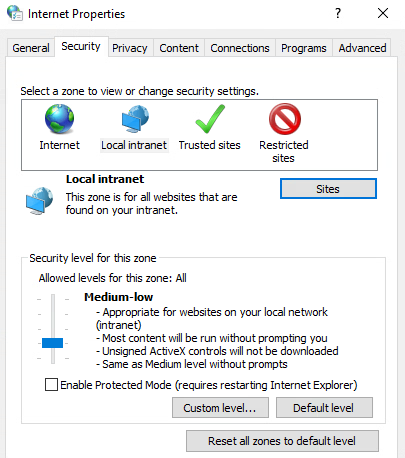
Add https://ndes-server/ and https://ndes-server.domain.fqdn/
Registry Changes After Installation
Replace the original name of template to new one:
HKLM\SOFTWARE\Microsoft\Cryptography\MSCEP
EncryptionTemplate = <LDAP name>
GeneralPurposeTemplate = <LDAP name>
SignatureTemplate = <LDAP name>
IPSECIntermediateOffline

with your new template, e.g. TemplateNDES:

Certificate Verification
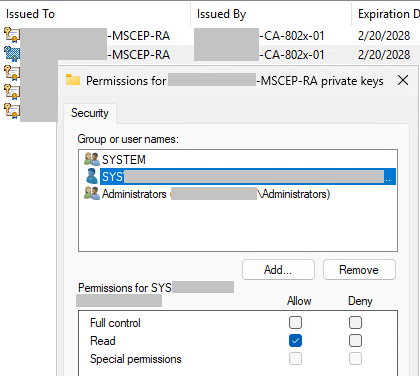
Check that two certificates for NDES are issued.

Verify that the NDES service account DOMAIN\SYSNDES has Read permissions on both RA certificates.
Verification of NDES Virtual Application
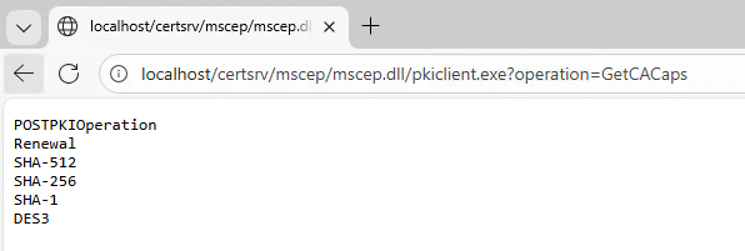
CA capabilities:
http://localhost/certsrv/mscep/mscep.dll/pkiclient.exe?operation=GetCACaps
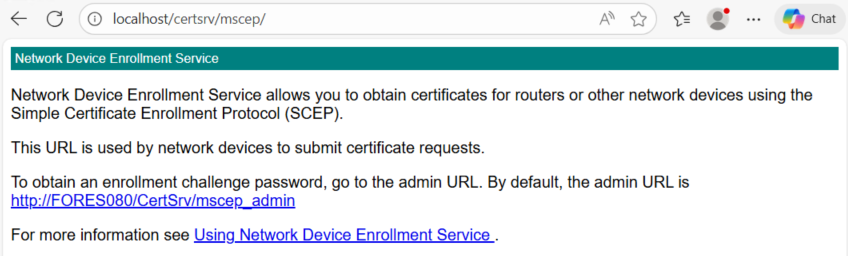
Basic NDES test:
http://ndes-server/certsrv/mscep
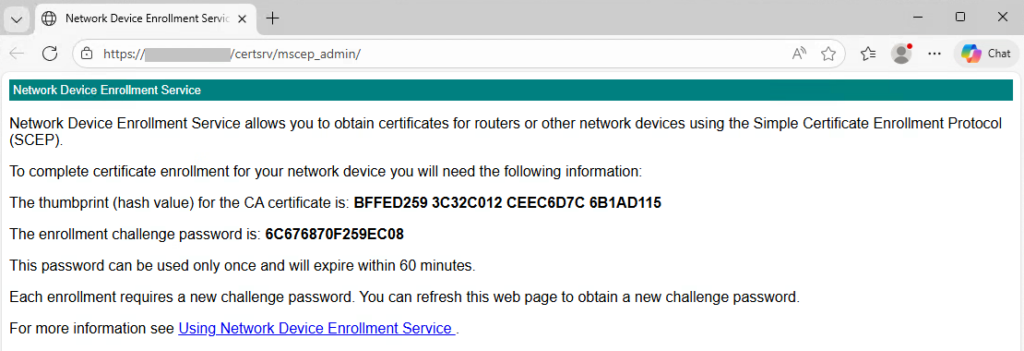
OTP generation test:
https://ndes-server/certsrv/mscep_admin
Check that an OTP is generated, valid for 60 minutes, and one‑time only.
Troubleshooting
If Event Log NetworkDeviceEnrollmentService shows Event ID 6 / 48:
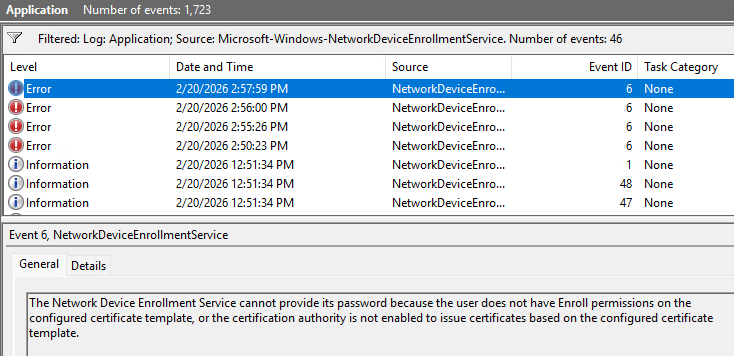
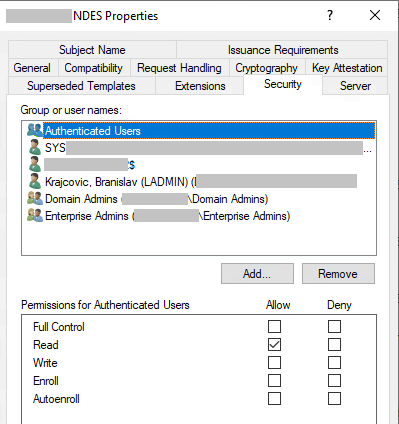
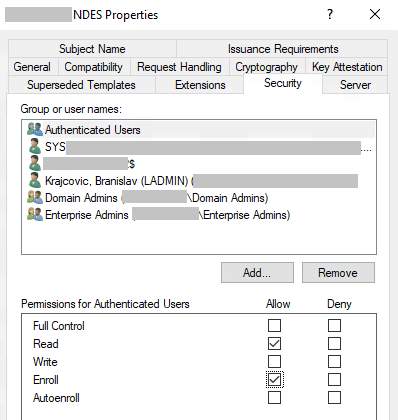
Solution: Add “Authenticated Users / Enroll” permission.
Original missing Enroll permission
to enable for Authenticated Users
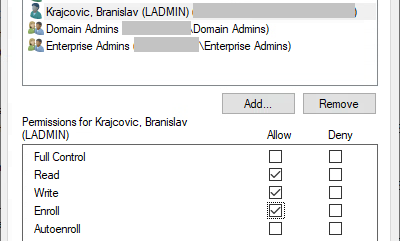
And for current logged on administrator
If /mscep_admin shows:
“You do not have sufficient permission to enroll with SCEP. Please contact your system administrator.”
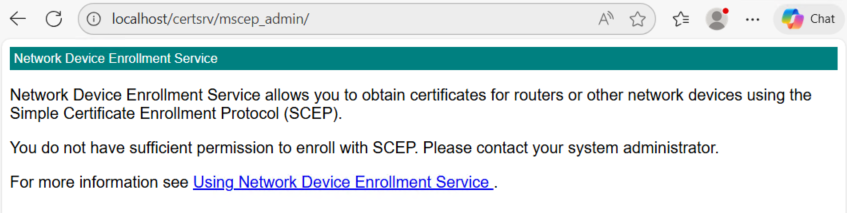
Follow guidance in the article:
If Setup Wizard fails on a second attempt
You may receive:
“Specified service already exists. 0x80070431 (ERROR_SERVICE_EXISTS)”
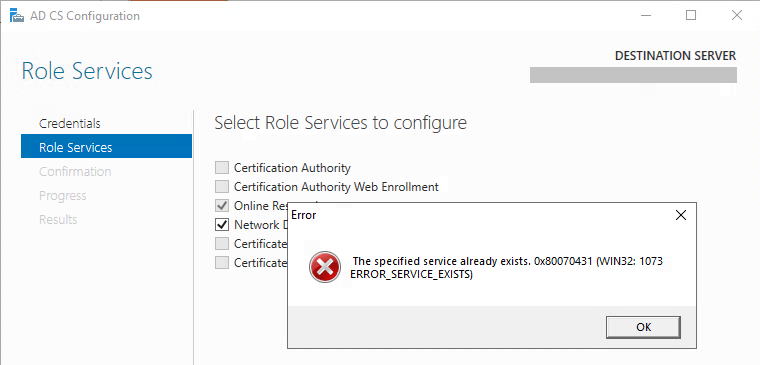
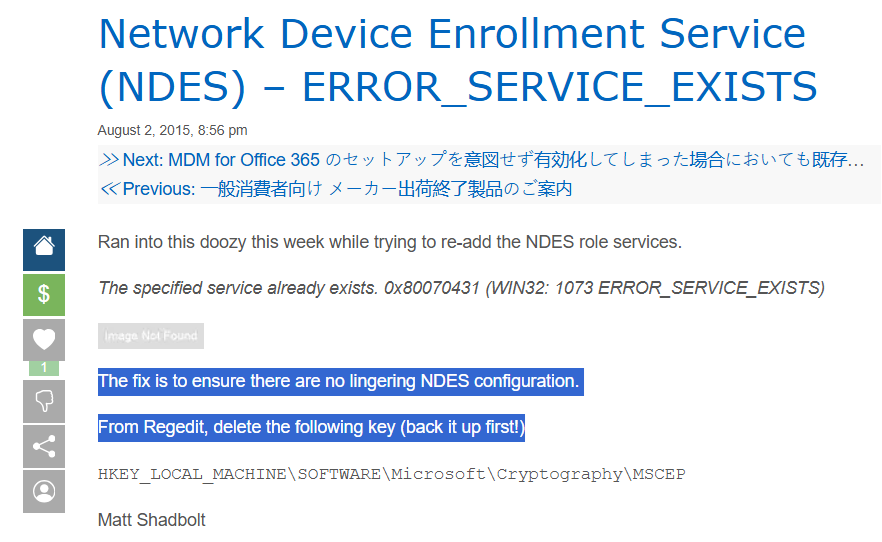
In that case, you must not only remove the role but also manually delete the MSCEP registry key, as described here:
From https://technet440.rssing.com/chan-6827930/article17632.html
Branislav Krajčovič
Leave a Reply