
Sharing e-mail domain as it described in this post is not a recommended solution by Microsoft, but it is possible. The configuration is based on the principle of sharing a single e-mail domain between two e-mail systems. In Exchange Online it’s function “Internet Relay”, in Kerio Connect it’s function “Forwarding”.
Most of screenshots are from a production environment, so I had to blur or redraw them using the ‘example.com’ domain name.
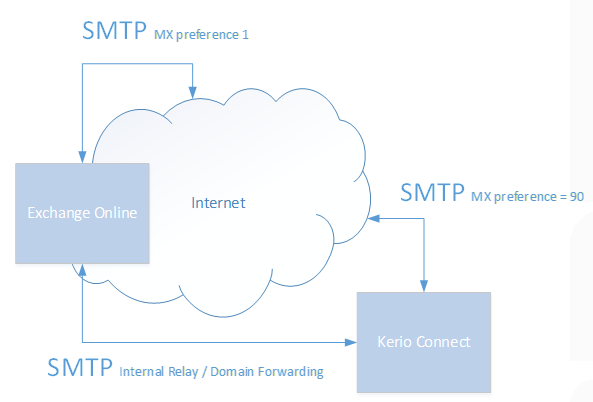
Schema of sharing e-mail domain between two e-mail systems is shown below:
To properly configure it correctly you have to get the DNS settings for your domain from Office 365, specifically the MX record address.
Customer has two domains, but primarily it is ‘example.com’. ‘another.domain’ is not relevant in this scenario.
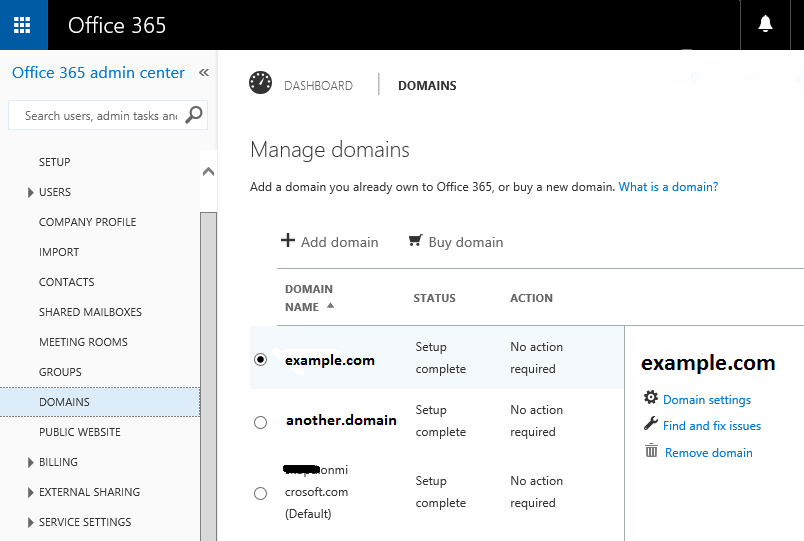
The MX record of domain ‘example.com’ in our case is ‘example-com.mail.protection.outlook.com’
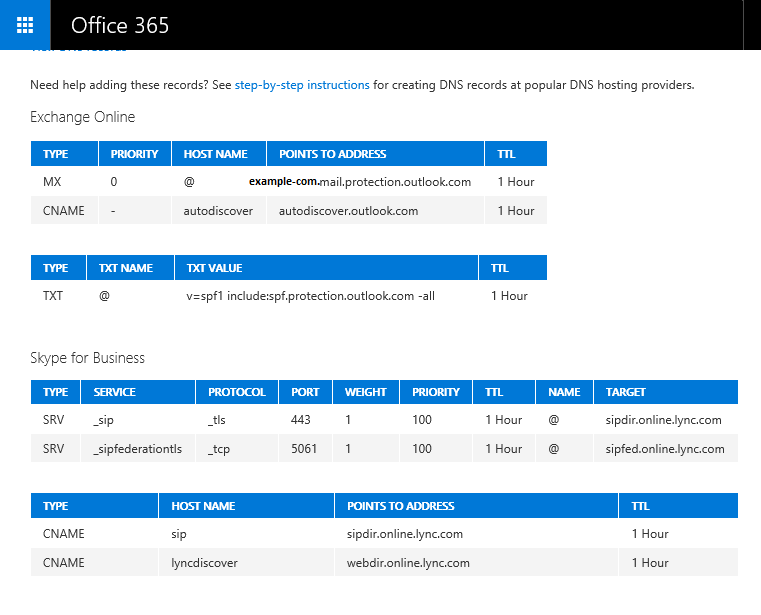
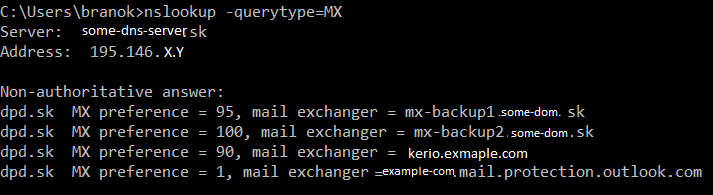
MX records must be configured for both published e-mail systems — Exchange Online and Kerio Connect. The lowest priority (0) must be assigned to Exchange Online, and a higher priority (90) to Kerio Connect. Other MX records are unnecessary, in our case it’s relict of provider’s solution to backup incoming SMTP e-mails for case of losing of internet connectivity. So MX records with preferences 95 and 100 should be removed.
Next step is Exchange Online configuration to set e-mail domain as ‘Internet Relay’ accepted domain. This ensures that all e-mails are either delivered to recipients hosted in Exchange Online or relayed to the on‑premises Kerio Connect server.
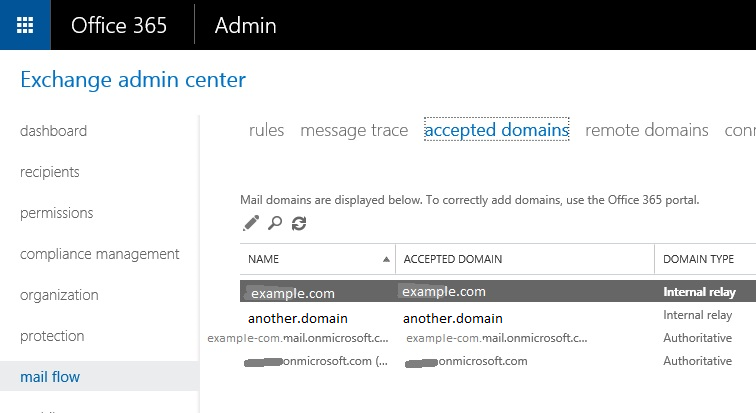
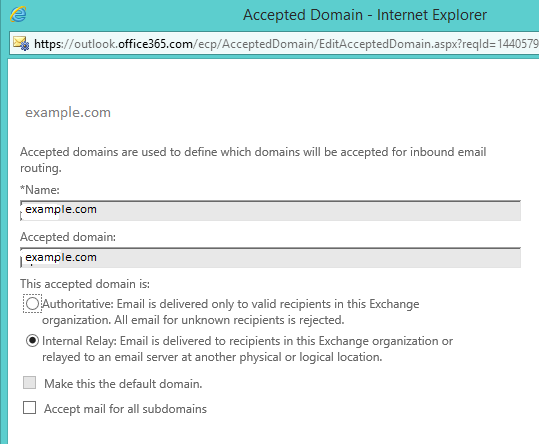
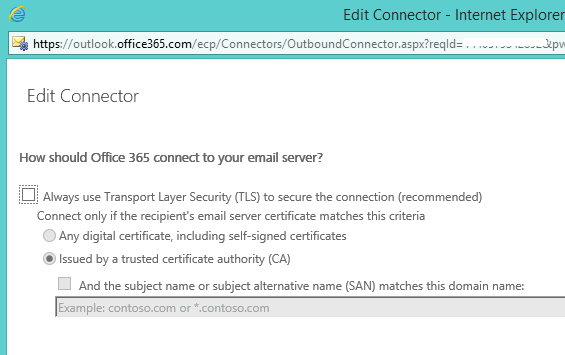
The final Exchange Online configuration step is to create a connector
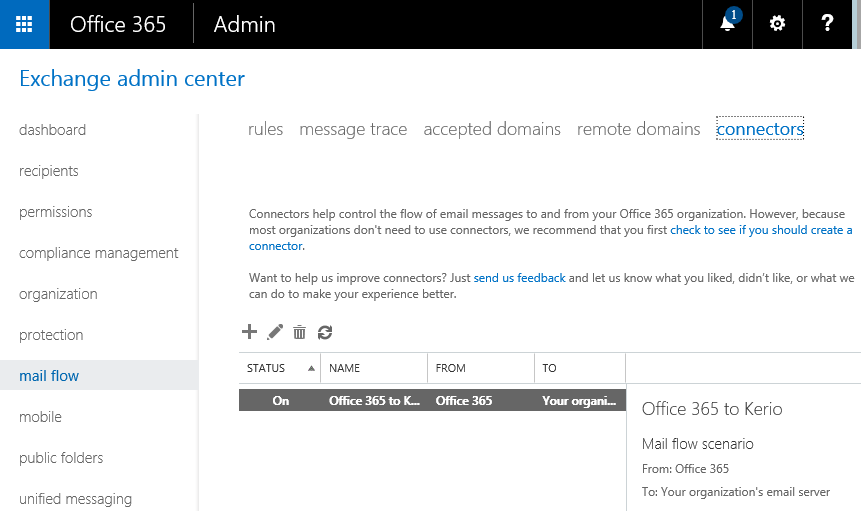
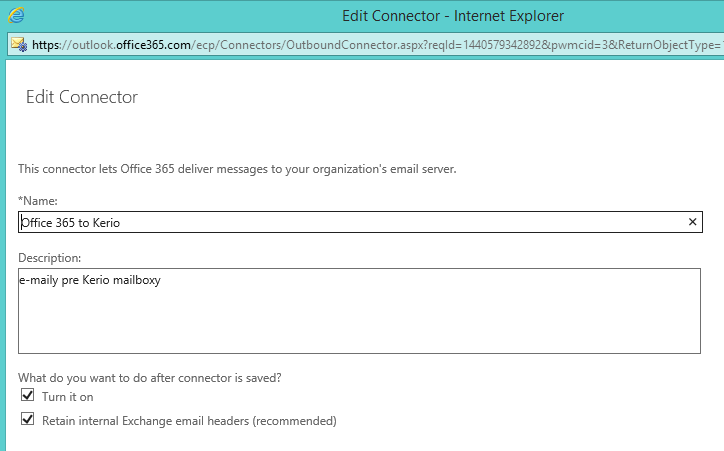
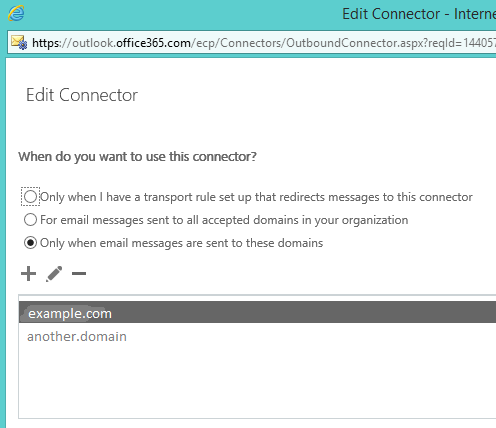
Connector is set the following domain:
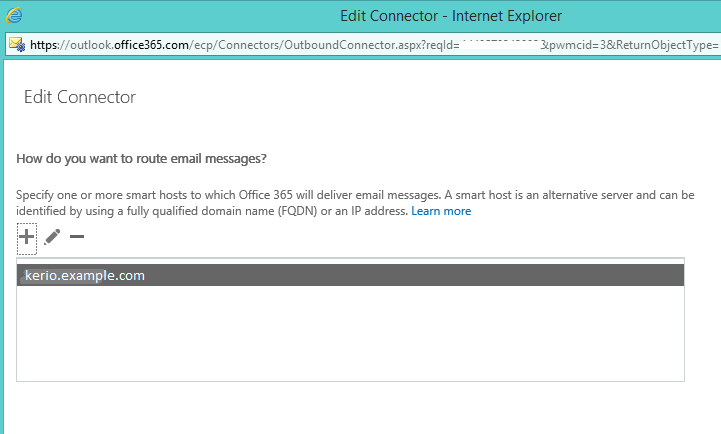
Just type name from Priority “90” of Exchange Online MX record which in our case is ‘kerio.example.com’. This hostname represents the on‑premises Kerio Connect e-mail system.
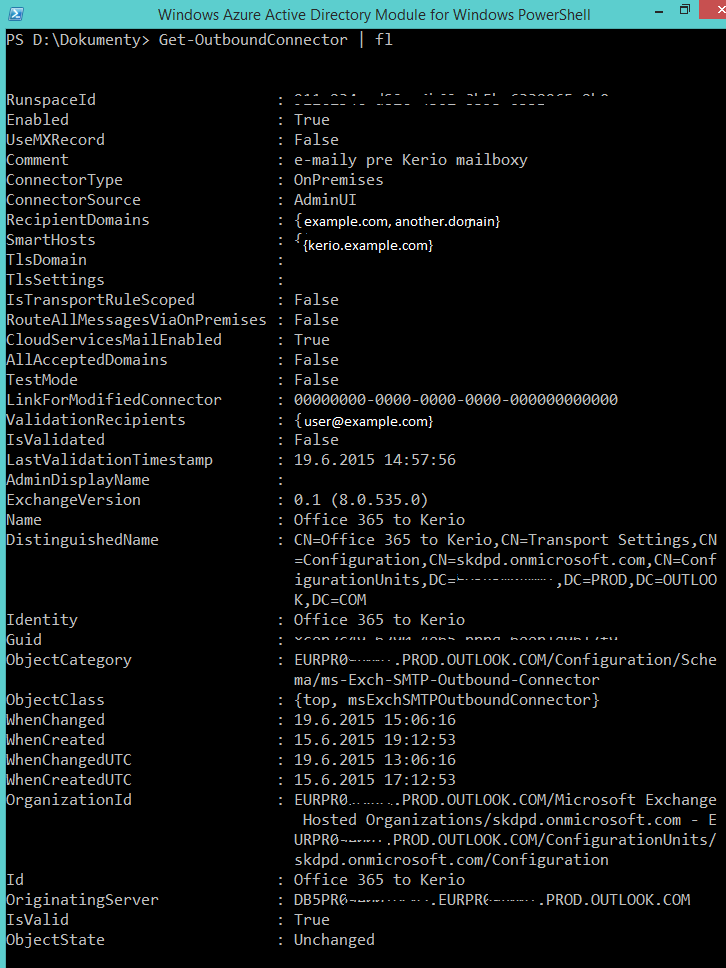
Properties of connector and accepted domain in PowerShell are shown below
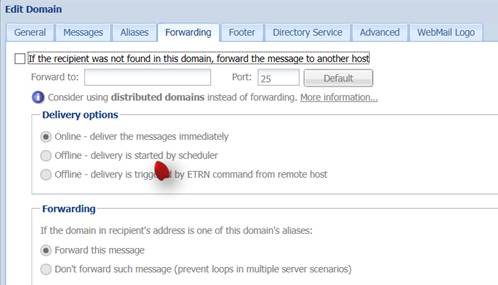
Kerio Connect must have the same configuration: all e-mails should be forwarded to Exchange Online if the recipient is not found in the local e-mail domain. To do it just edit domain, on Forwarding tab enable option “If the recipient was not found in this domain, forward the message to another host” and into field “Forward To:” type name of Priority “0” of Exchange Online MX record, in our case ‘example-com.mail.protection.outlook.com’ .
Last question that must be answered is ‘What about e-mail looping between both systems?’ In some cases, an e-mail may be sent to a recipient address that does not exist in either system. In this configuration, both e-mail systems would forward the message to each other repeatedly, which results in e-mail looping. It may be partially mitigated by configuring Kerio Connect to detect and block e-mail loops.
Leave a Reply